

Team and roles
Bring your colleagues into your organization and give each person the right role.
Use case: an HR admin invites two recruiters and a hiring manager on the first day. Each joins as a viewer, and she then gives each person the role they need.
Who can do what
Section titled “Who can do what”| Role | What they do |
|---|---|
| Owner, Super Admin, Org Admin | Set up the organization, members, departments and settings. |
| Org Viewer | Read only: the organization profile and job list. |
| Dept Head, Dept Admin | Run a department’s jobs and team. |
| Recruiter | Create jobs, review questions, invite candidates. |
| Hiring Manager | Review results and decide on candidates. |
| Interviewer | Run interviews and submit feedback. |
| Viewer | Read only. |
Organization roles (Super Admin, Org Admin and Org Viewer) are set on the Members page. Department roles are set in Departments.
See your team
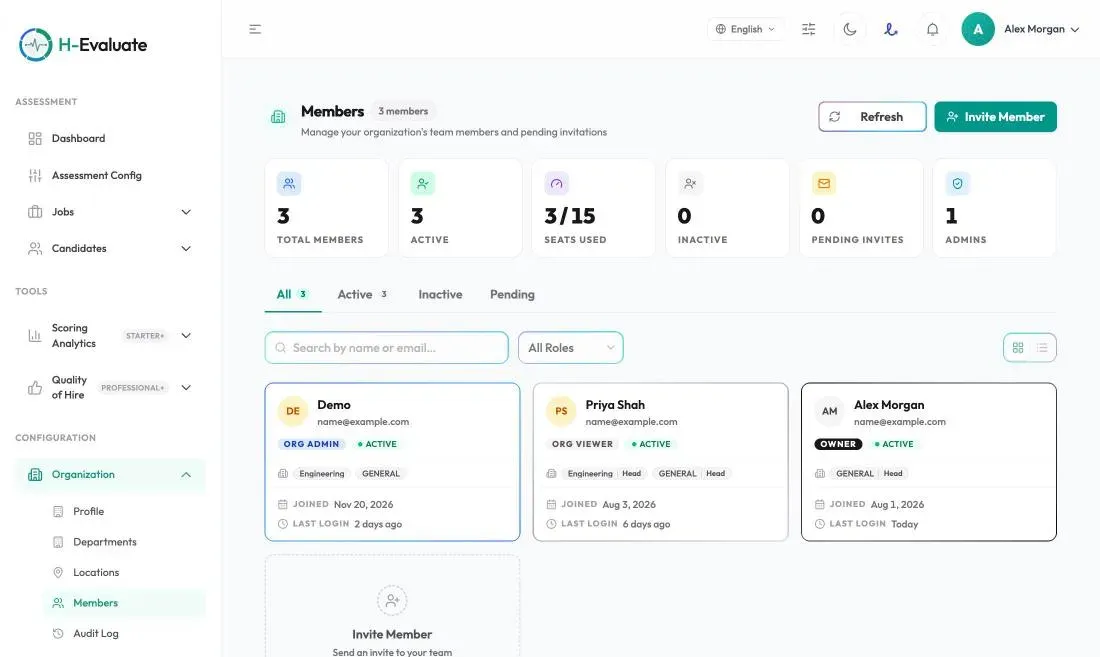
Section titled “See your team”- In the sidebar, open Organization, then Members.
- Use the tabs All, Active, Inactive and Pending to filter the list.
Invite colleagues
Section titled “Invite colleagues”- On Members, select Invite Member.
- In Email addresses, enter one or more work emails. Separate them with commas or new lines.
- Optional: add a personal note in Message.
- Select Send Invite.
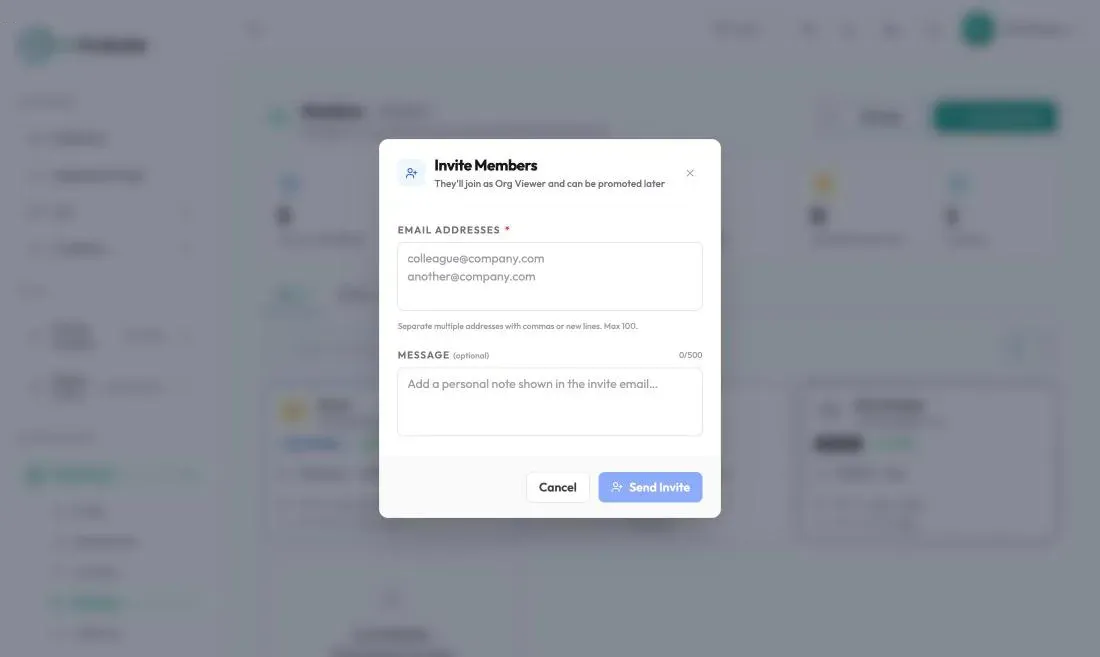
New members join as Org Viewer. You can give them another role after they join.
Change a role
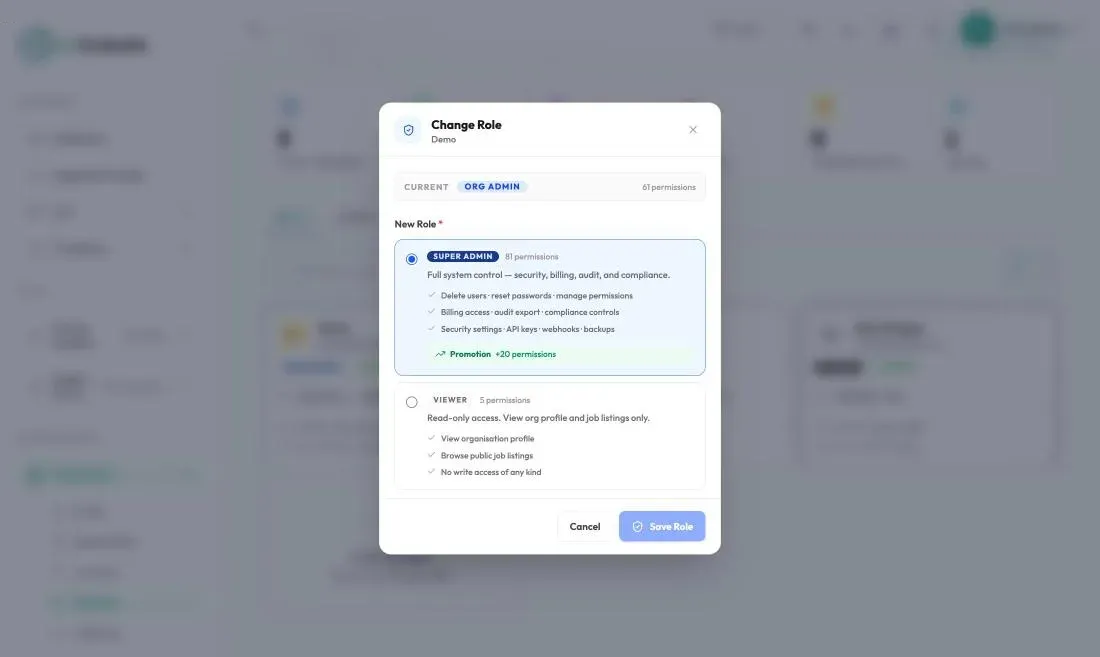
Section titled “Change a role”- On Members, open the member’s actions and select Change Role.
- Pick the New Role. You see only the organization roles you are allowed to give, and not the member’s current role: Super Admin, Org Admin or Viewer (Org Viewer). For example, an owner changing an Org Admin sees Super Admin and Viewer. The dialog shows whether the change is a Promotion or a Demotion, and what the new role can do.
- Choose a Reason and select Save Role.
- You can invite up to 100 addresses at a time.
- An invitation expires after a set time, shown under Expire after on the Members page (72 hours unless your organization changed it). Use Resend or Revoke on a pending invitation.
- A pending invitation holds a seat on your plan. Revoke unused invitations to free the seat.
- Keep the number of admins small. Each admin has full access.
- Someone leaving? Select Deactivate. Their data is kept, and you can activate them again later.
- Next: Departments
- Related: Organization and settings
- Need help? Email [email protected].