

Candidates
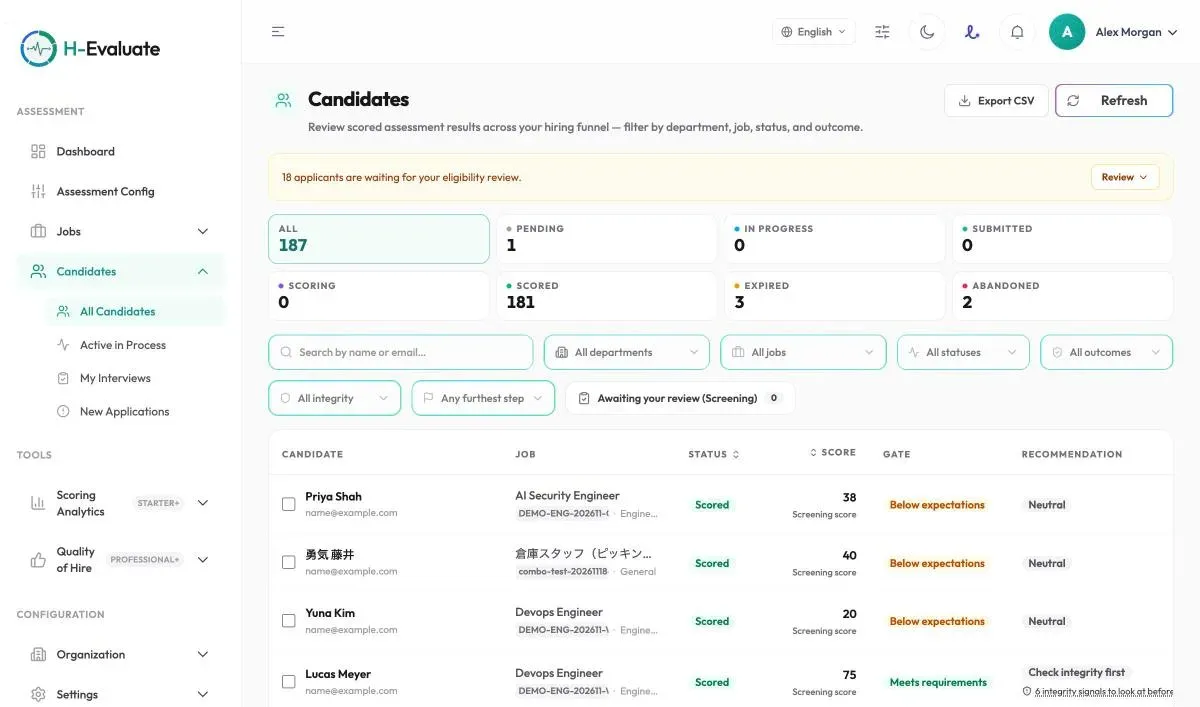
Candidates lists everyone you invited, across all your jobs, with their progress and result. Candidates appear here as soon as they are invited.
Use case: on Monday morning a recruiter opens Candidates, filters to one job and to Awaiting your review, and works through the people who wait for her decision.
To add candidates, see Invite candidates.
Find a candidate
Section titled “Find a candidate”- Select Candidates in the sidebar.
- Use Search by name or email…, or filter by department, job, status, outcome, integrity or the furthest step reached.
- Awaiting your review for a step, for example Awaiting your review (Screening), shows only the candidates held at that step until you decide. If the filter is not available yet, the page says so and your other filters still apply.
- Clear filters shows everyone again.
Status
Section titled “Status”| Status | Meaning |
|---|---|
| Pending | Invited, not started yet. |
| In progress | Taking the test now, or started and not finished. |
| Submitted | Finished; scoring has not started yet. |
| Scoring | Answers are being scored. |
| Scored | The result is ready. |
| Expired | The invite expired before the test was finished. |
| Abandoned | Left the test unfinished. |
| Withdrawn | The invitation was withdrawn. |
| Data deleted | The candidate’s personal data was erased. |
Outcome
Section titled “Outcome”The outcome compares a scored result with the job’s pass marks and requirements:
- Meets requirements
- Below expectations
- Did not meet requirements
For jobs with an Eligibility check, the candidate’s steps also show Eligibility check: met, not met or awaiting your review.
Quick view
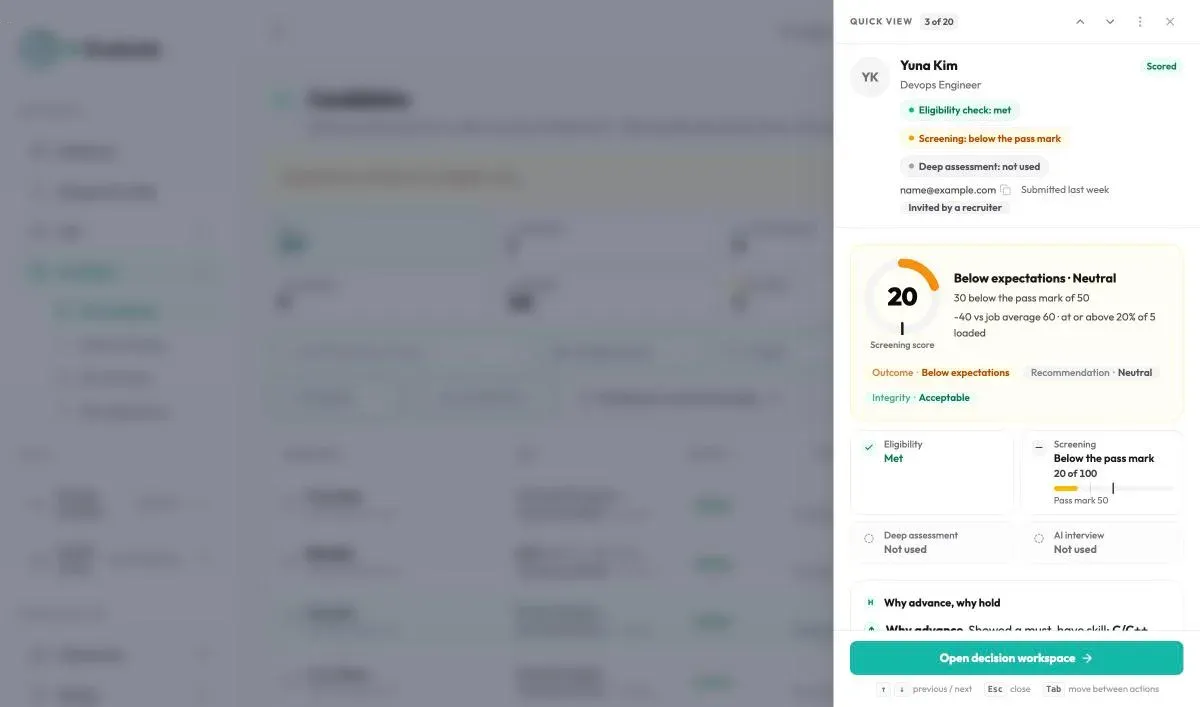
Section titled “Quick view”Select a candidate’s row to open the quick view beside the list. It shows the candidate’s score, outcome, recommendation and integrity, and a tile for each step: Eligibility, Screening, Deep assessment and AI interview. A step the job does not use reads Not used. Select Open decision workspace to open the candidate’s page. See Results and reports.
- To compare people side by side, tick two or more scored candidates and select Compare. See Compare candidates.
- Export CSV downloads the candidate list as a CSV file.
- Language results are for your information only. They are not used to decide.
- Next: Invite candidates
- Related: Candidate results
- Need help? Email [email protected].