

Results and reports
When a candidate finishes, H-Evaluate scores the answers and builds a result page for them. In rare cases a step has no score, for example when too few Screening questions were answered; the page then says so. It tells you what was found, how the candidate did at each step, and lets you Advance, Hold or Decline them.
Use case: a hiring manager gets a message that a finalist is ready. She opens the candidate, reads What we found, checks the evidence for the one must-have skill she cares about most, and selects Advance.
Open a candidate
Section titled “Open a candidate”Open a candidate from Candidates, from the quick view (Open decision workspace), or from a job’s results. The page opens on the Candidate decision workspace.
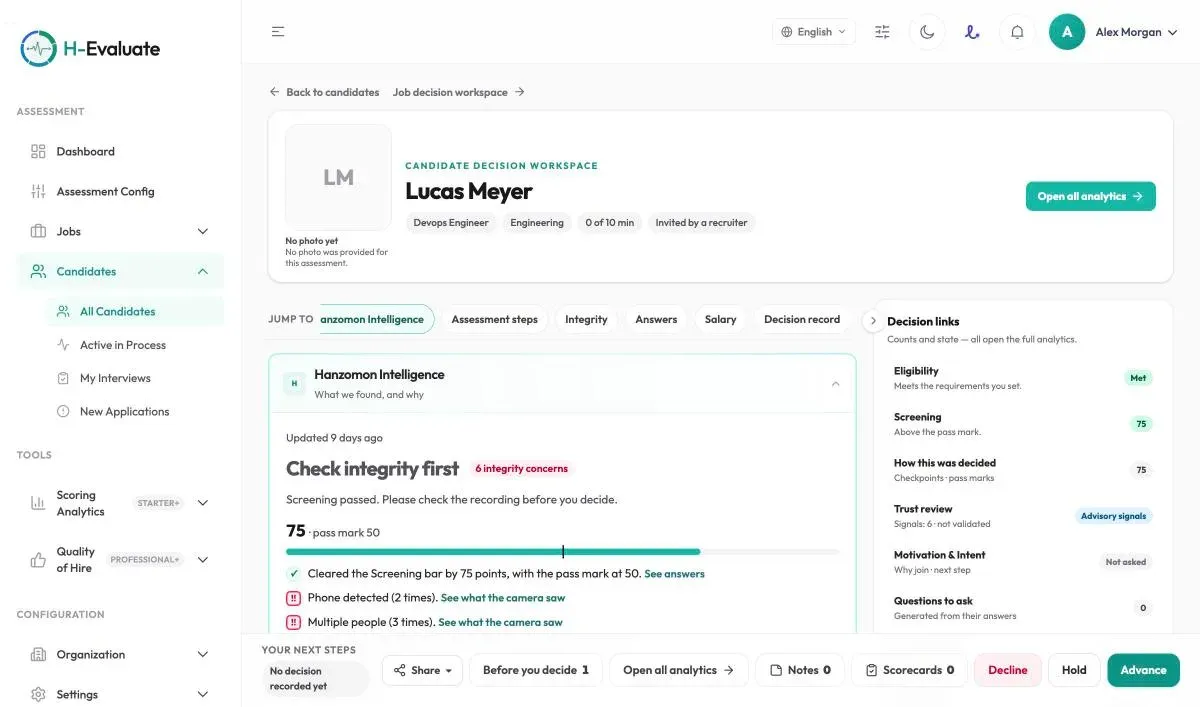
The Candidate decision workspace
Section titled “The Candidate decision workspace”- Hanzomon Intelligence (What we found, and why) sums up the result and what to check first, against the job’s requirements.
- Jump to takes you straight to a section, for example Assessment steps, Integrity, Answers, Salary or Decision record.
- Decision links, beside the page, shows the state of each step, for example Eligibility and Screening. Each link opens the full analytics.
- Assessment steps shows the result of each step the job uses, for example the Eligibility check, the Screening and the Deep assessment.
- Levels shows the candidate’s motivation level and, where the job tests it, the language level. Language results are for your information only.
- Your next steps, the bar at the bottom, holds Share, Before you decide, Open all analytics, Notes, Scorecards and the decision buttons Decline, Hold and Advance.
Record your decision
Section titled “Record your decision”- Select Advance, Hold or Decline. Hold marks the candidate On hold.
- Add a reason. Usually it is optional (Add a reason (optional)); when the page asks Why?, a reason is required.
- Confirm. Advance this candidate? moves them to the next step; Decline this candidate? means they will not move forward.
You can change a decision later. Every decision is kept in Decision history, with the date. After you advance a candidate, the page can also show Interview questions to ask them. They may take a moment to prepare, and written interview questions depend on your plan.
See the evidence
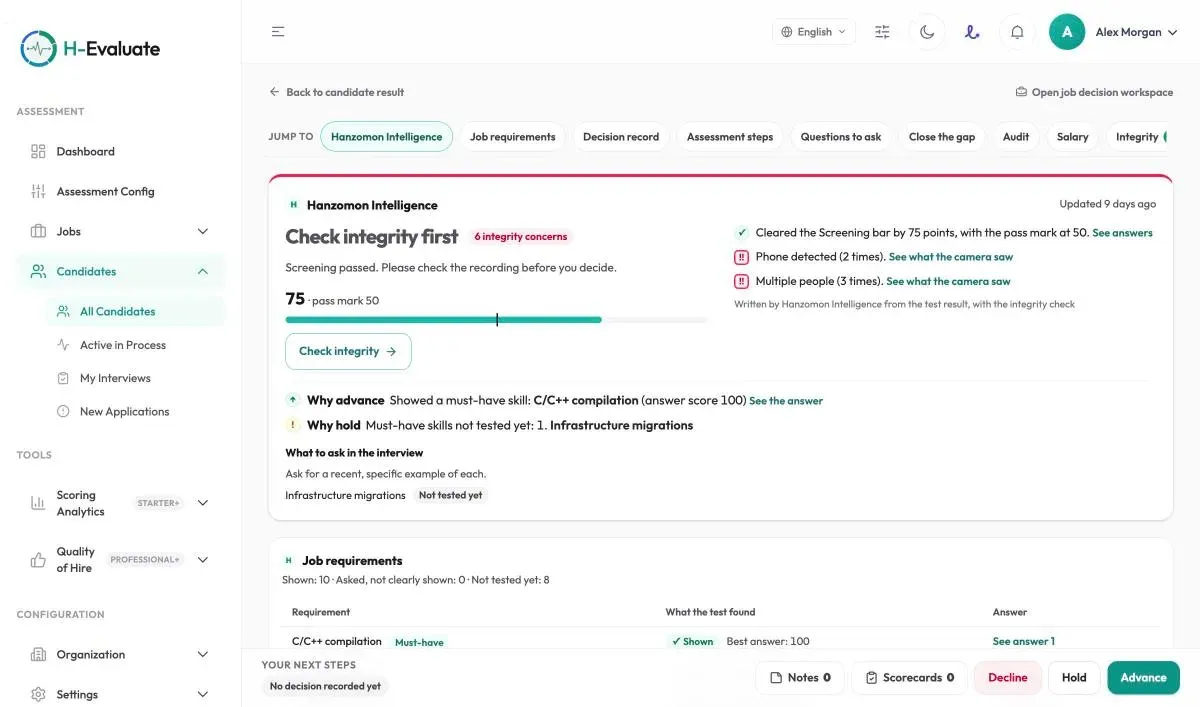
Section titled “See the evidence”Select Open all analytics to see the Candidate analytics page: the result step by step, the skill areas, each requirement and the answers behind the score, and any integrity notes.
- Candidates never see their score or the pass mark. Only your team does.
- Scores are out of 100. Ranks compare candidates on the same job and the same test.
- To compare several people, see Compare candidates. For the whole job, see Job results.
- If you have permission to manage candidates, the Candidate analytics page also lets you erase a candidate’s personal data. See Privacy and data.
- Next: Compare candidates
- Related: Job results
- Need help? Email [email protected].