

Assessment configuration
Choose how one job assesses its candidates. Each setting follows your organization defaults unless you change it here.
Use case: most of a company’s jobs use the full assessment, but its seasonal picker job needs a quick test for hundreds of applicants. The recruiter turns on Bulk hiring for that one job.
Open the job’s settings
Section titled “Open the job’s settings”- Open the job from the Jobs page.
- Select Assessment config. You see the job’s Assessment Config page.
Choose the steps
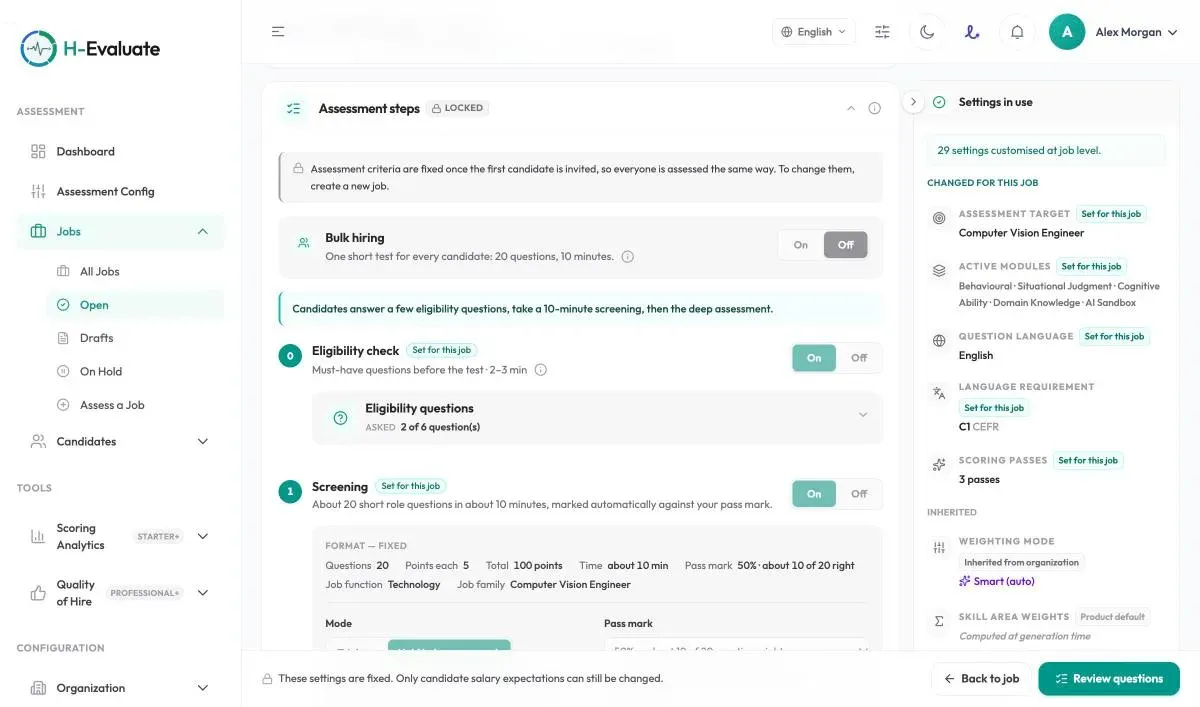
Section titled “Choose the steps”Assessment steps shows what a candidate goes through, in order:
- Eligibility check. The Eligibility check is a few quick questions about the job’s requirements, answered before the test (about 2 to 3 minutes, not scored). You choose and approve the questions, for example work permit, on-site location or notice period, and mark each one as Must-have or Preferred. If a candidate does not meet a Must-have, they are held for your review, not rejected: you decide whether they continue.
- Screening. Screening is a short test of the job’s must-have skills: 20 questions in 10 minutes, marked automatically against a pass mark you set (50% by default). Before the Deep assessment, it can either just record scores (trial run) or hold candidates below the pass mark for your review. Candidates never see the pass mark. If you hold candidates, decide on them in time: a candidate nobody decides on by the deadline is stopped automatically.
- Deep assessment. The Deep assessment is the full, scored test of the role’s skills, situations and ways of working, with its own pass marks. When it follows Screening, it gives the final score.
Switch a step on or off, then save. At least one of Screening and the Deep assessment must stay on; the Eligibility check alone is not enough.
Use Bulk hiring for this job
Section titled “Use Bulk hiring for this job”Bulk hiring gives every candidate one short test: Screening (20 questions, 10 minutes) instead of the Deep assessment. If the job has an Eligibility check, candidates still answer it first. Turn it off to bring the Deep assessment back; each job can follow this setting or choose its own.
- In Assessment steps, find Bulk hiring.
- Choose one:
- On: one short test for every candidate: Screening, 20 questions in 10 minutes (longer for a candidate you give extra time). The Eligibility check, if the job has one, still comes first.
- Off: the standard steps, with the Deep assessment.
- Use organization setting: follow your organization’s default.
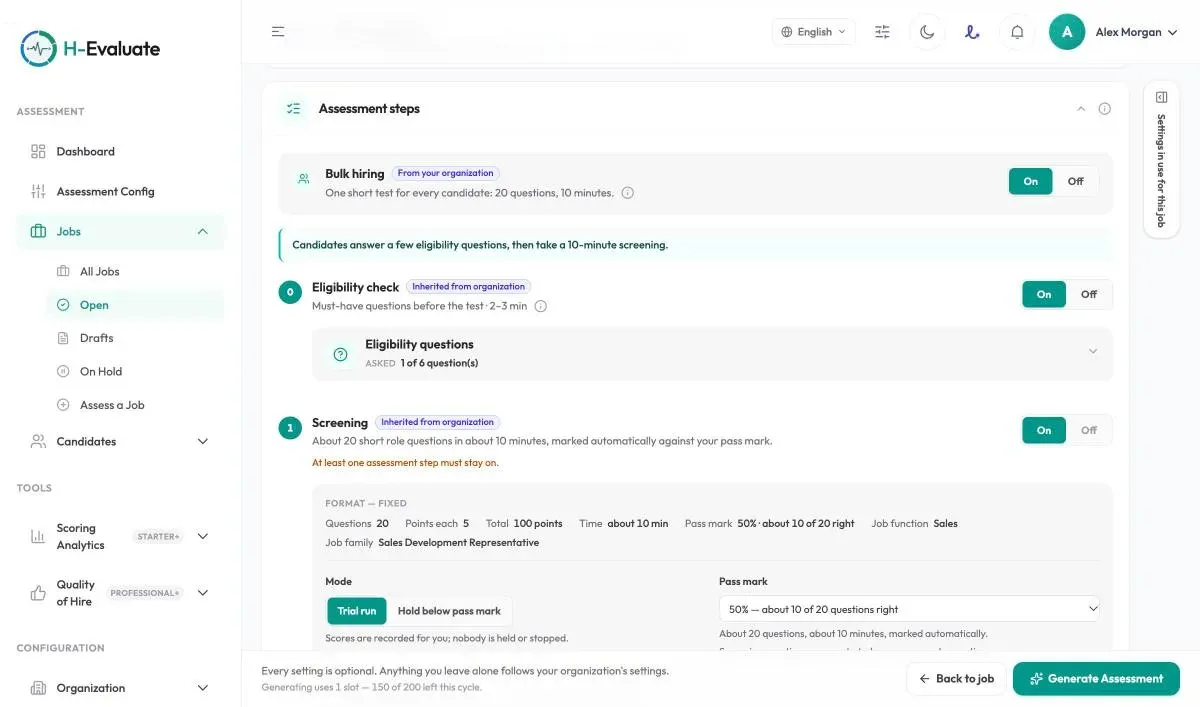
Bulk hiring needs Hiring in volume to be on for your organization. See Organization and settings.
Change other settings
Section titled “Change other settings”Each section works the same way: select Edit, make your change, then select Save changes.
- Scoring weights: how much each skill area counts towards the overall score.
- Pass marks: who advances, who is reviewed, who is not progressed.
- Assessment language: the language the questions are written in.
- Proctoring & integrity: camera and microphone recording, and the integrity checks for this job.
Check Settings in use to see what this job will use, and which settings are changed for this job. To go back to your organization’s choice for the steps, select Reset to organization default.
- Once the first candidate is invited, the settings are locked so everyone is assessed the same way. The page tells you what is locked. To use different settings, create a new job.
- Each setting shows where it comes from: Set for this job, Inherited from organization or Product default.
- Can view but not change? Ask a recruiter who manages jobs in this department.
- When the settings are ready, select Review questions to continue.
- Next: Generate questions
- Related: Assessment standards, Bulk hiring
- Need help? Email [email protected].