

Try out the test
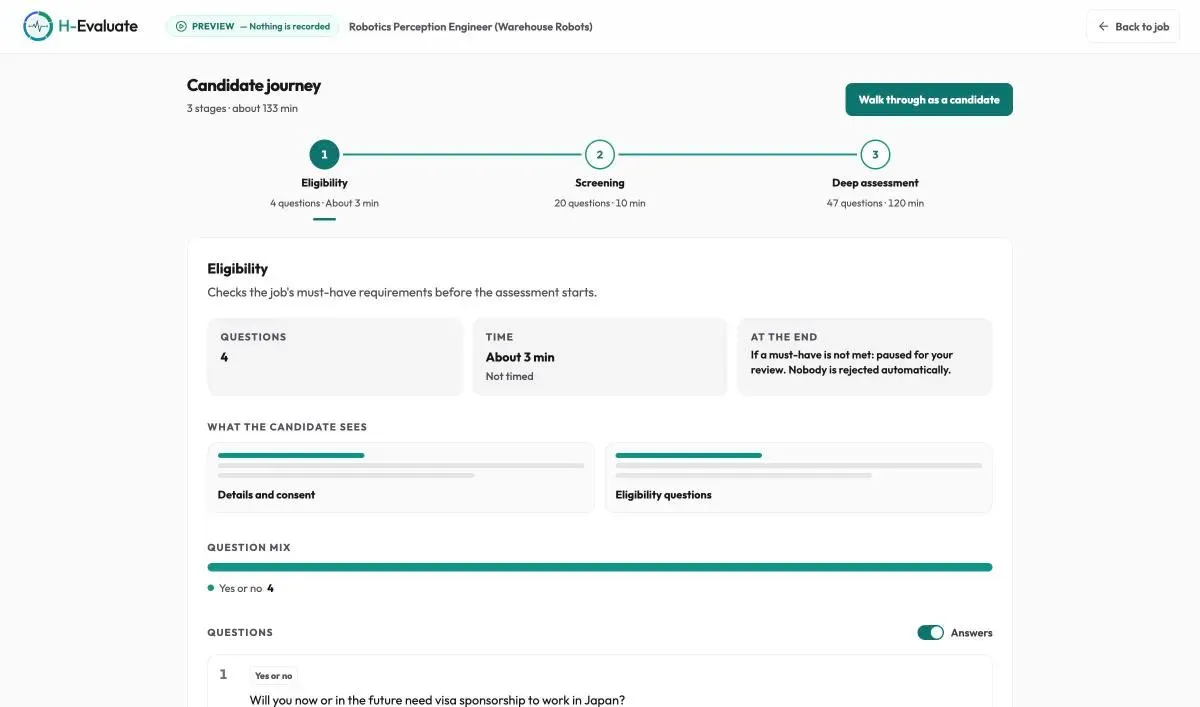
Try Out the Test opens on the Candidate journey: an overview of each stage of the test, with its questions and time. From there, Walk through as a candidate shows you the test the way a candidate sees it: the same screens, one question per screen, with the timer for each part and the break between parts. Nothing you do in the preview is saved or sent. It shows one possible journey: each candidate gets their own draw of questions, and a long test may show only the first part of its questions (Previewing the first n of total questions).
Use case: before inviting 30 applicants, a recruiter walks through the Screening and the Deep assessment herself, checks how long each part takes, and turns on the answer key to see what a strong answer looks like.
Before you start
Section titled “Before you start”- The job must be open to candidates. While it is a draft you see Publish the job to preview it.
- The questions must be ready. Until then you see Available once the assessment is ready.
- You need permission to manage assessments in the job’s department.
- Open the job and select Try Out the Test.
- You see the Candidate journey: each step the candidate goes through (for example Eligibility, Screening and Deep assessment), with the number of questions, the time and what happens at the end of the step. Candidates see: names the language the test is shown in.
- Select a step to see what the candidate sees in it, the question mix, its questions and the pass mark that applies. Candidates never see the pass mark. Use the Answers switch to show or hide the answers.
- Select Walk through as a candidate to go through the real screens in order, or Walk through this stage for one step only. The bar at the top reads Preview: nothing is saved or sent.
- Move between questions with the buttons or the ← and → keys.
- To see the break screen between Screening and the Deep assessment, select See the pause screen.
- Select Back to journey, then Back to job, when you are done.
What is different from the real test
Section titled “What is different from the real test”- Answer key. Switch Answers shown or Answers hidden. With answers shown you see the correct or best answer, the correct order for ranking questions, or the marking guide for written answers. In Walk through as a candidate the answer key starts hidden, because a candidate never sees it.
- Audio. Candidates hear a listening clip once. In the preview you can replay it. Spoken-answer questions do not record anything in the preview.
- No camera or microphone. Setup screens that ask for them show Preview: nothing is requested. The preview lists which integrity controls candidates will see, for example identity photo, fullscreen lock and integrity monitoring.
- One possible draw. Every candidate gets their own draw from the test’s questions, so the questions you see may differ from any one candidate’s.
- Use the preview to see how long each part takes, so you can tell candidates what to expect.
- If a step shows Off for this job, candidates skip it and go straight to the next step.
- From the preview you can go to Review questions or Assessment config to change what you saw.
- Next: Candidates
- Related: Review questions
- Need help? Email [email protected].