

Review questions
Generated questions go through automatic quality checks, and many come back already approved. The review page lets you spot-check them, read the answer key and decide on any question that still waits for you.
Use case: a hiring manager has ten minutes before a meeting. She opens the 40 generated questions, filters to the ones still in review, reads three of them in the detail panel and approves the rest in one go.
Open the review page
Section titled “Open the review page”- Open the job.
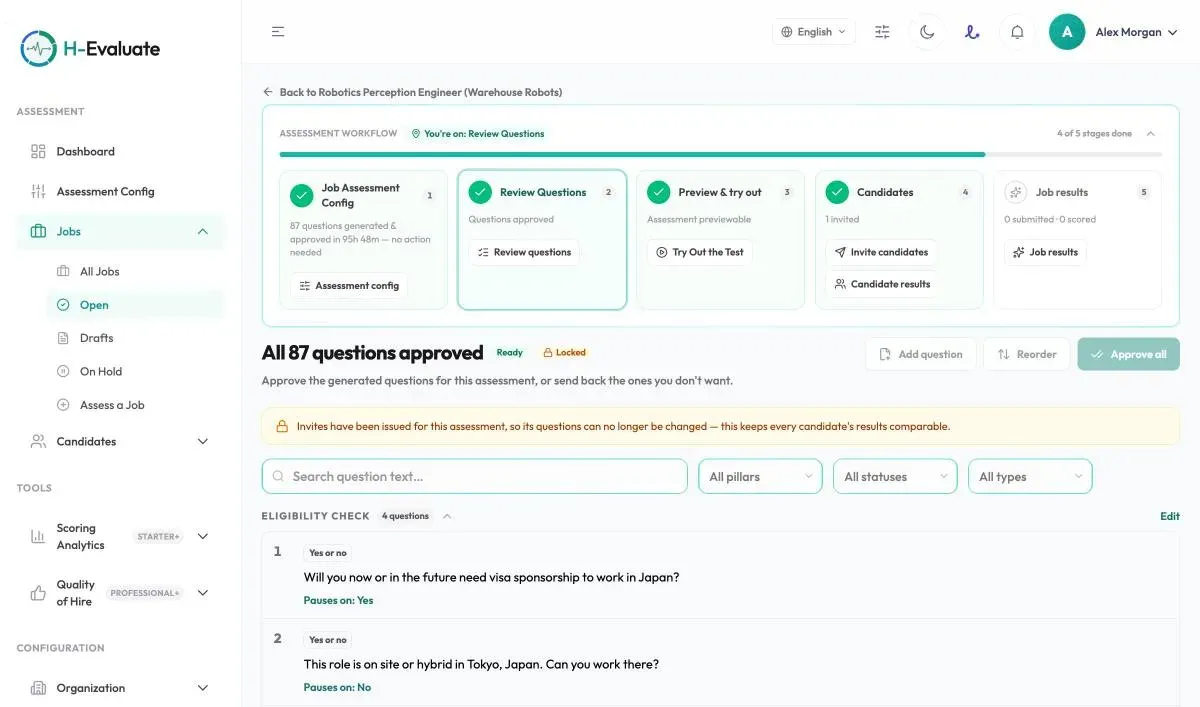
- Select Review questions in the Assessment workflow. The page title is Review questions, with the job’s name and a back link.
The header tells you where you stand:
- All n questions approved automatically: nothing is waiting. Spot-check any question you like.
- x of n questions approved: some questions still wait for your decision.
Questions are grouped by step, Screening and Deep assessment, with the number of questions in each.
Find a question
Section titled “Find a question”- Search question text… finds words in the question.
- Filter by pillar, status or question type. Bias flagged only shows questions with a bias signal.
- Clear filters shows everything again.
Each question has a status:
| Status | Meaning |
|---|---|
| AI Draft | Generated and waiting for a decision. |
| In Review | Waiting for a reviewer. |
| Active | Approved. Candidates can get this question. |
| Stale | The question or its evidence changed after an earlier decision. Look at it again. |
| Retired | Removed from the test, for example after it was replaced. |
Read a question in detail
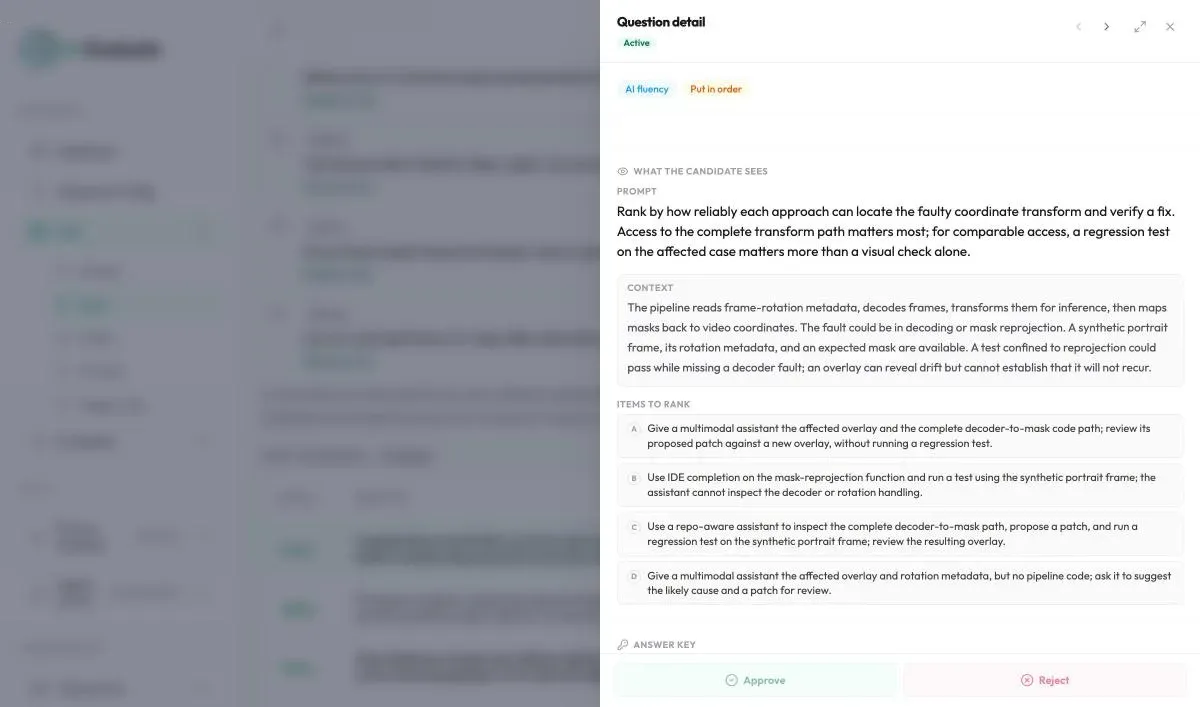
Section titled “Read a question in detail”Select View details to open the Question detail panel. It shows:
- What the candidate sees: the question exactly as it appears in the test.
- Answer key: the correct or best answer, and why. Written questions show a Model answer or Rubric dimensions instead.
- Bias signals and the Quality gate results from the automatic checks. Quality: not checked means the question did not go through the quality check; look at it yourself.
- Details: pillar, type, language, time limit and difficulty.
Listening questions play once for candidates; in the panel you can replay them as often as you like.
Decide
Section titled “Decide”- Approve: the question goes into the test.
- Approve with findings: approve a question that has findings from the checks. Your approval records that you accept the findings shown for this exact version.
- Reject: take the question out.
- Edit: change the wording before you approve.
- Approve all (n): approve every question still pending, in one step.
- If you invite candidates while some questions are still unreviewed, those questions are skipped.
- After the first invite, the page shows Locked — candidates have already been invited. Questions can no longer change, so every candidate’s results stay comparable.
- On the Professional and Enterprise plans you can also write your own question with Add question. It joins the review list like any other question.
- Next: Try out the test
- Related: Invite candidates
- Need help? Email [email protected].