

Invite candidates
Each candidate gets a personal link by email. For Bulk hiring jobs you can also post one link that many candidates use.
Use case: a recruiter exports 150 applicant emails from a job board and sends the invites in two batches, because one batch takes up to 100 addresses.
Before you start
Section titled “Before you start”- The job must be open, and its questions ready. The Invite candidates button explains what is missing, for example Generate the assessment first or Job is on hold — resume it to invite more candidates.
- Each invitation sets credits aside until the candidate finishes. Candidates who never start cost you nothing. If you are out of credits, H-Evaluate tells you so. See Billing and credits.
Invite by email
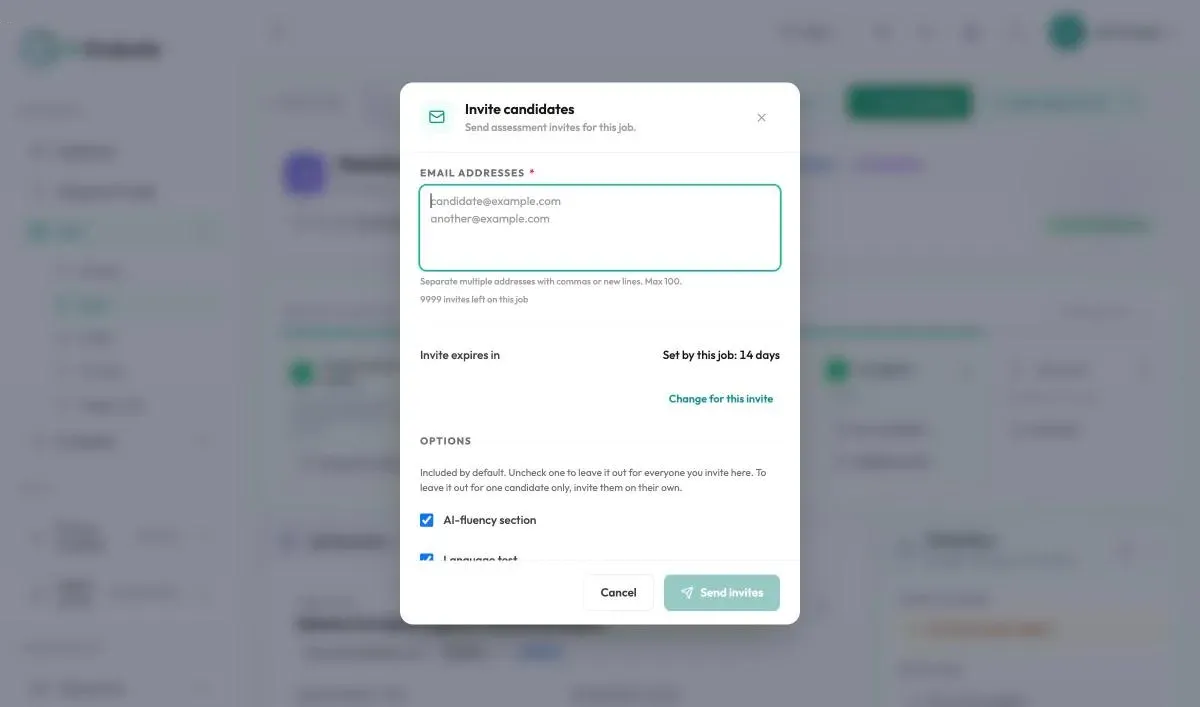
Section titled “Invite by email”- Open the job and select Invite candidates.
- In Email addresses, paste one or more addresses. Separate them with commas or new lines. The hint under the box shows the most you can send at once, and how many invites are left on the job.
- Check Invite expires in. It uses the job’s setting; select Change for this invite to set a different number of days for this batch only.
- Under Options, leave the included parts ticked, or untick one to leave it out for everyone in this batch.
- If needed, set Extra time. This is an accessibility accommodation: it changes only the clock, never the questions or the scoring.
- Select Send invites.
- Invites processed shows what happened to each address:
| Result | Meaning |
|---|---|
| Emailed | The invite was created and the email sent. |
| Created | The invite was created. |
| Skipped | Not sent again, for example because the person already has a live invite, or the address was listed twice. |
| Not allowed | The person already took this test and your retake rules do not allow another attempt yet. |
| Invalid | Not a valid email address. |
| Failed / Email failed | Something went wrong. Select Retry failed. |
Track, resend or revoke invites
Section titled “Track, resend or revoke invites”Candidate Invitations on the job page lists every invite with its state, delivery and expiry date.
- State: Pending, In progress, Completed, Revoked or Expired.
- Delivery: Queued, Sent, Bounced or Failed.
- Resend sends the candidate a fresh link.
- Revoke stops the candidate’s link from working.
Select several rows to resend or revoke them together.
Share one link (Bulk hiring jobs)
Section titled “Share one link (Bulk hiring jobs)”For a Bulk hiring job you can post a single link, for example on a job board or a poster. Each candidate enters their email address, gets a verification code and then starts the test.
- Open the job and select Create assessment link.
- In Assessment link, set Candidates allowed and how long the link Stays open for.
- Select Create & copy link and share it.
To stop new candidates from joining, select Turn off link in the Assessment link dialog and confirm with Yes, turn it off. The address then admits no one new. Turning a link off is permanent: a new link gets a new address.
- Your organization’s retake rules decide whether someone who already took the test can be invited again. Admins set them in Assessment Config.
- To give one candidate different options or extra time, invite them on their own.
- Next: Results and reports
- Related: Candidates
- Need help? Email [email protected].