

Assessment standards
Set your organization’s defaults once. Every new job starts from them, and each job can change them for itself.
Use case: a head of talent wants one hiring bar across the company. She sets a 65% advance mark here, so every new job uses it unless a recruiter changes it.
Open the page
Section titled “Open the page”- In the sidebar, under Assessments, select Assessment Config.
- You see Defaults for all jobs. Each job can override them.
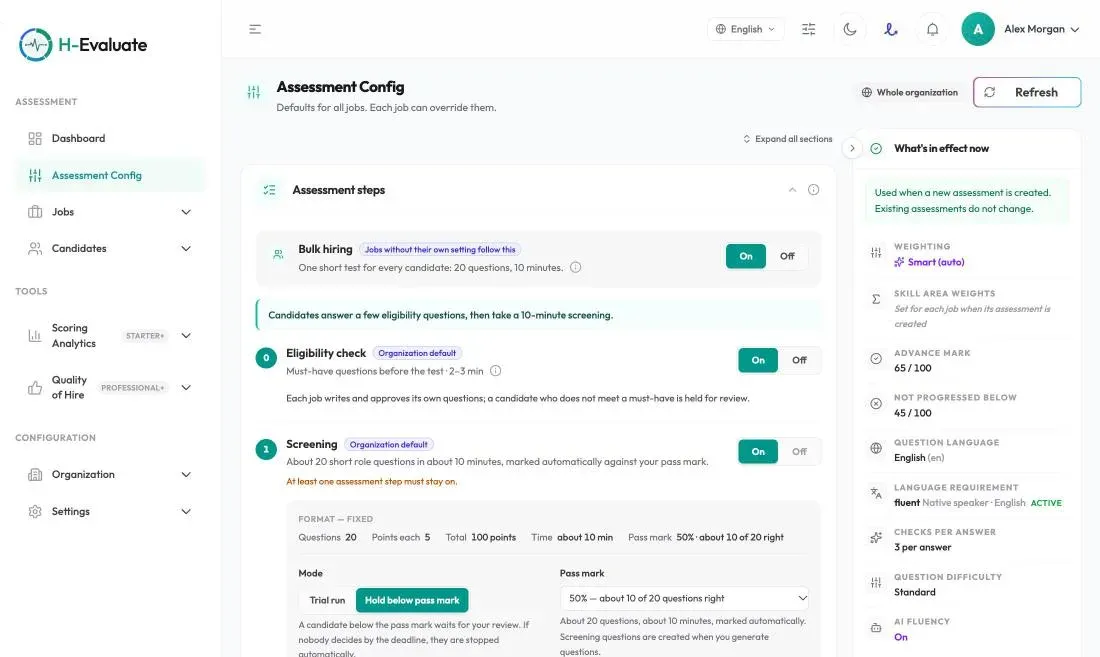
Nothing set yet? The page says so, and product defaults apply until you change a section.
Change a default
Section titled “Change a default”- Find the section and select Edit.
- Make your change.
- Select Save changes.
What you can set
Section titled “What you can set”| Section | What it controls |
|---|---|
| Assessment steps | What a candidate goes through, in order: Eligibility check, Screening, Deep assessment. Also the Bulk hiring switch. See Bulk hiring. |
| Scoring weights | How much each skill area counts towards the final score. Must total 100%. |
| Pass marks | Which candidates Advance, land in the Review zone, or are Not progressed. |
| Question language | The language the questions are written in. Arabic is shown right to left. |
| Language requirement | An optional minimum language level. It never changes the overall score. |
| Scoring reliability | How carefully written answers are checked, question difficulty, and whether new questions need a recruiter’s review. |
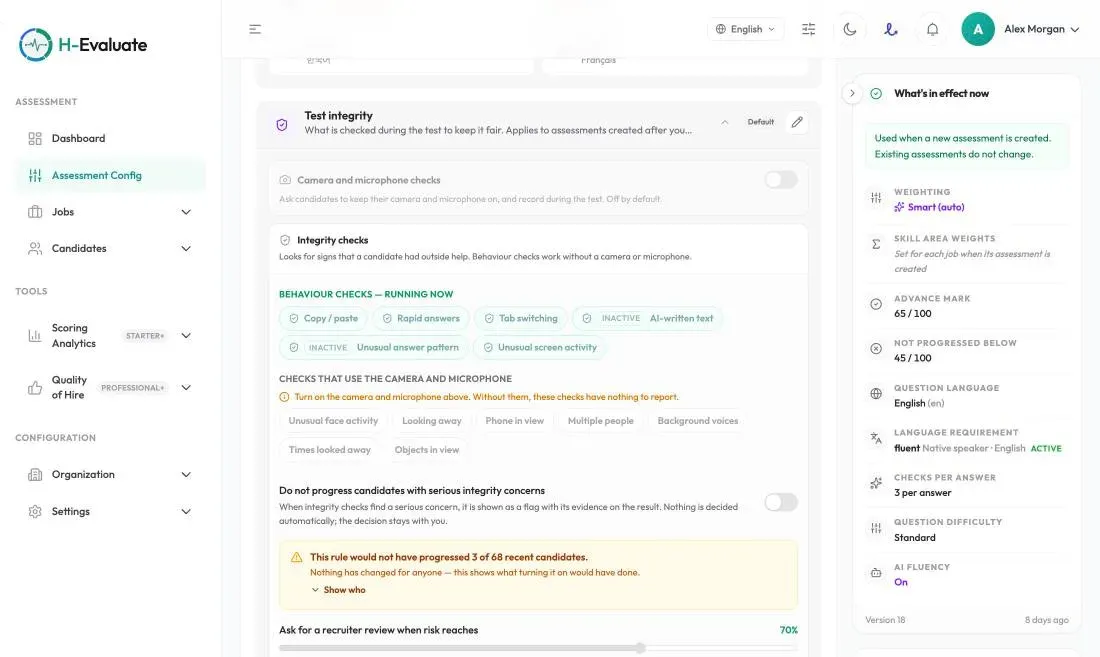
| Test integrity | Camera and microphone recording and the checks used during the test. |
| Identity photo and location check | One photo before the test, and the country the test was taken from. |
| Candidate sign-in | Whether candidates must enter an emailed code before they start. |
| Retakes | Whether a candidate can take the same job’s assessment again. |
Set pass marks
Section titled “Set pass marks”- In Pass marks, select Edit.
- Set the Advance mark. Candidates at or above it advance automatically.
- Set the Not progressed mark. Candidates below it are not progressed. You can still record your own decision.
- Candidates in between are in the Review zone: a recruiter decides.
- Select Save changes.
- A 65% advance mark works well for most roles. Raise it for senior or highly competitive roles. Lower it for high-volume roles.
- Changes apply to new assessments only. Assessments already in use do not change.
- Scoring weights and pass marks lock once a candidate submits, so scores stay comparable.
- Check What’s in effect now to see the settings a new assessment will use.
- To change a setting for one job only, see Assessment configuration.
- Next: Bulk hiring
- Related: Assessment configuration
- Need help? Email [email protected].