

Office locations
List the offices your teams work from, so jobs can link to the right one.
Use case: a retail chain hiring store staff in three cities adds each store as an office. Each on-site job then links to its store.
Add an office
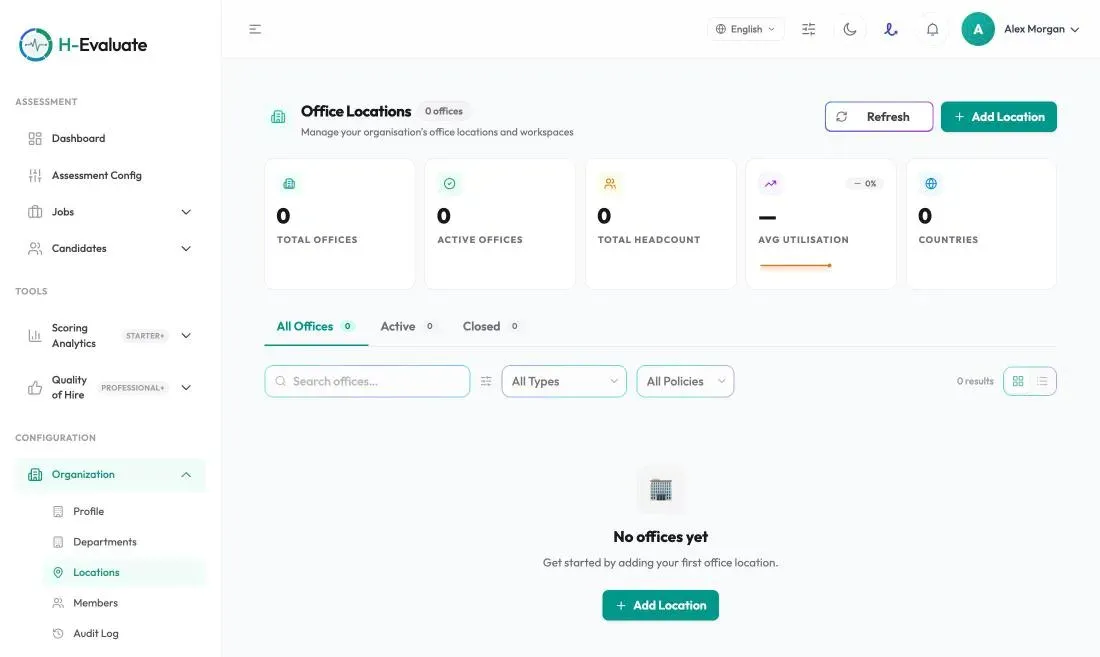
Section titled “Add an office”- In the sidebar, open Organization, then Locations. You see Office Locations.
- Select Add Location.
- Fill in the office details, then save.
Find an office
Section titled “Find an office”- Use the tabs All Offices, Active and Closed.
- Filter by office type, for example Headquarters or Branch.
- Filter by workplace policy: On-site, Hybrid, Remote OK or Flexible.
- Search by name with Search offices….
- An on-site or hybrid job needs at least one office. You can add it while you create the job, or later on the job page.
- To pick a Contact Office on your organization profile, you need at least one active office.
- Next: Assessment standards
- Related: Jobs
- Need help? Email [email protected].