

Organization and settings
Keep your company details up to date, and choose whether you run high-volume jobs.
Use case: an HR admin adds the company’s legal name and tax ID for invoices. Later, when seasonal hiring starts, she turns on Hiring in volume.
Update your organization profile
Section titled “Update your organization profile”- In the sidebar, open Organization, then Profile. You see Organization Profile.
- Open the section you want to change:
- Identity: name, brand and public description.
- Classification: type, industry and market scope.
- Business Intel: headcount and tenure.
- Legal Identifiers: registration and tax numbers.
- Contact Office: the main office shown to candidates and partners.
- Make your changes and save the section.
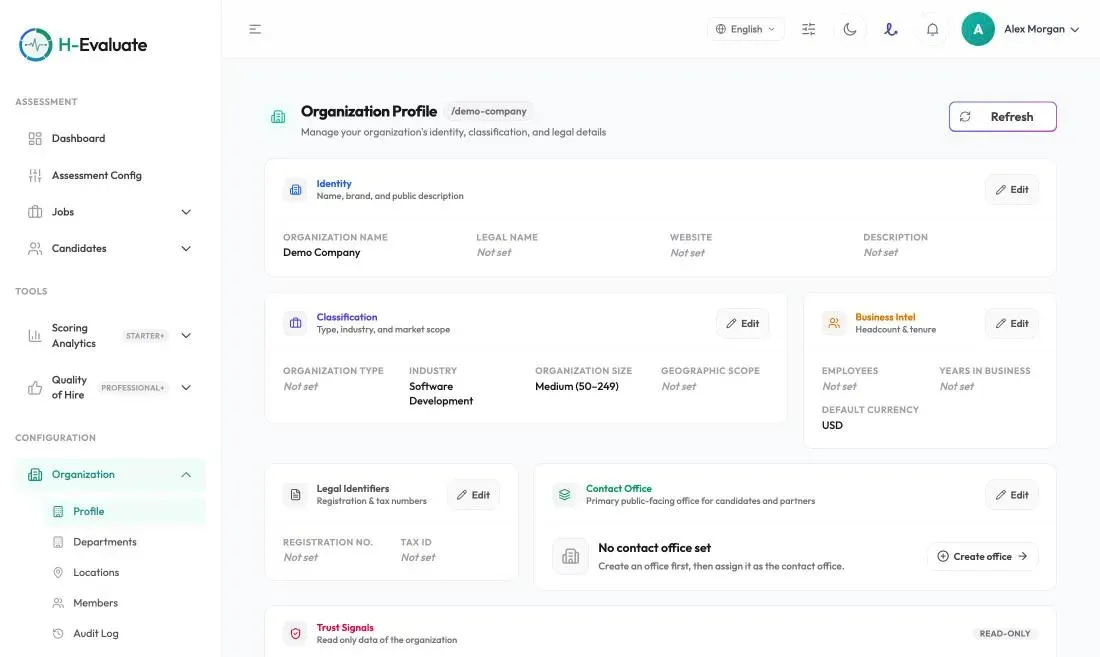
Trust Signals is read only.
Turn on Hiring in volume
Section titled “Turn on Hiring in volume”Hiring in volume lets you run Bulk hiring jobs, where every candidate takes one short Screening test, alongside your specialist jobs. Only an organization admin can change it.
- Open Organization, then Profile.
- Find the Hiring in volume card.
- Switch it On. You see Hiring in volume is on. You can now create Screening-only jobs.
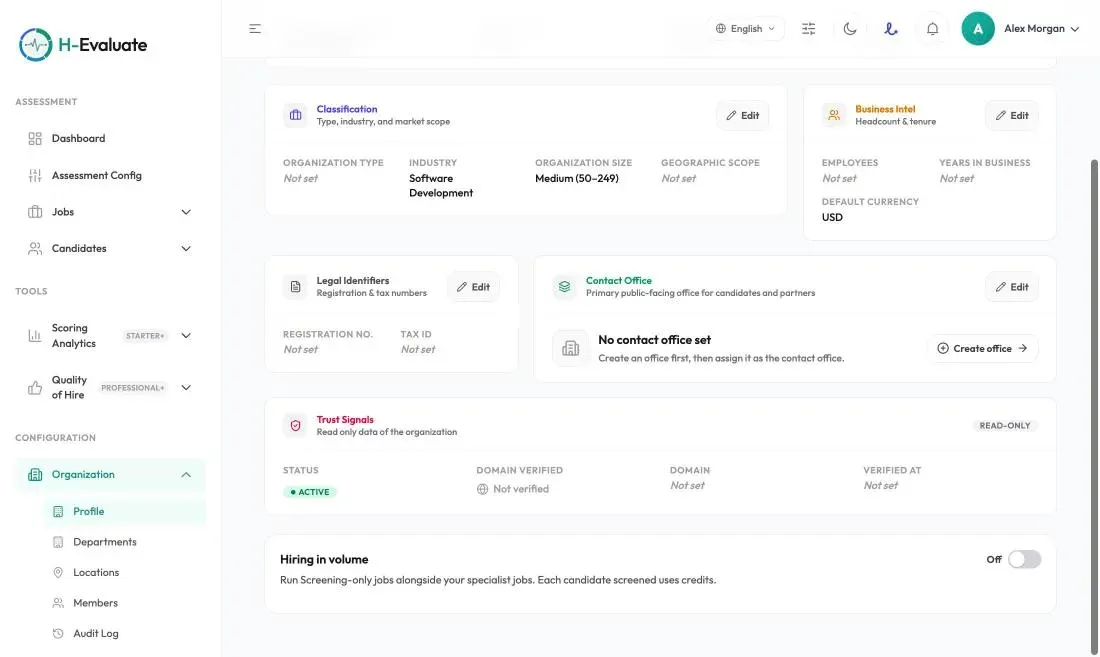
If the switch cannot be turned on, the card tells you why and what to do:
- On the free trial: select Choose a plan.
- When you need credits: select Add credits.
- When it is set by your contract: select Talk to us.
- Each candidate screened uses credits.
- You can turn Hiring in volume off at any time. Candidates already invited can finish. Bulk hiring jobs stop taking new candidates.
- To make Bulk hiring the default for every job, see Bulk hiring.
- Add your offices in Office locations.
- Next: Office locations
- Related: Bulk hiring, Billing and credits
- Need help? Email [email protected].