

Job results
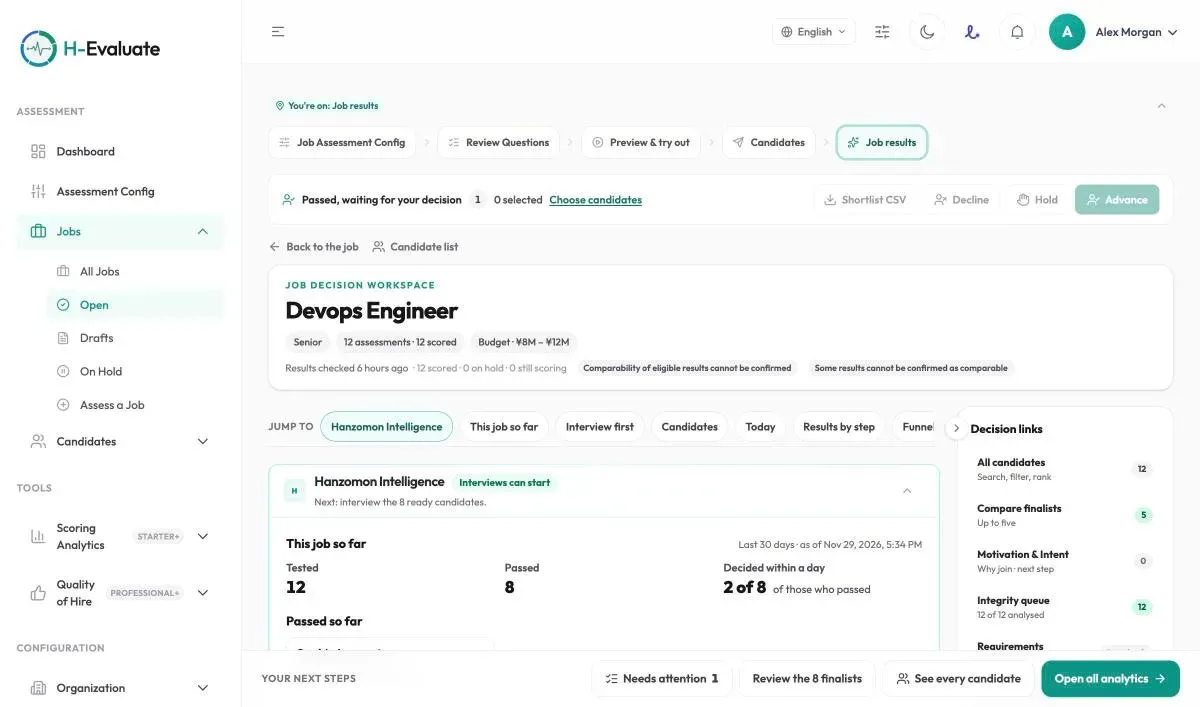
Job results shows how all candidates for one job are doing: who is ready to interview, how many got through each step, and what to do next.
Use case: after a week of invites, a recruiter opens the job’s results, sees eight candidates are Ready to interview, and sends the list to the hiring manager.
Open job results
Section titled “Open job results”Open the job and select Job results in the Assessment workflow.
What you see
Section titled “What you see”- Ready to interview and Top candidates: the candidates who met the job’s bar, ranked among comparable results. A short line says what “ready” means for this job, for example “scored at or above the Screening pass mark”.
- Results by step: how many candidates were eligible, passed, fell below the pass mark, or are held for your review at each step.
- Hanzomon Intelligence: a short summary and the suggested next step.
- What needs attention: for example finalists who still need an integrity check, or skills the test did not cover that you should ask about in the interview.
Only your team sees the pass mark. Candidates never see a score or the pass mark. On a Bulk hiring job the Screening is the scored test, so the scores on this page are Screening scores.
Actions
Section titled “Actions”- Compare top finalists opens Compare candidates.
- Invite more candidates opens the invite dialog.
- See all candidates opens the job’s candidate list.
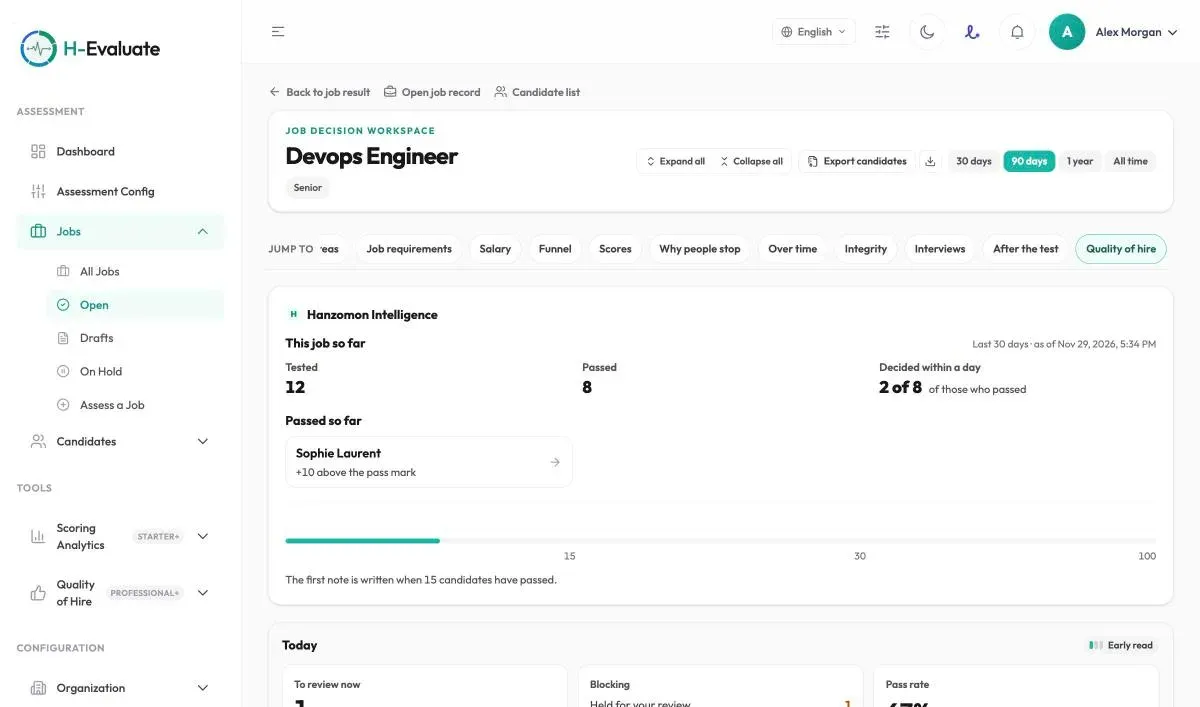
- Open all analytics opens the job’s detailed analytics: the steps for this job, and charts for each step and skill area.
Export the results
Section titled “Export the results”- On Job results, select Export. It takes you to the job’s analytics page. Select Export candidates. If you do not see it, ask your admin for permission to export.
- The export is prepared in the background. Open Export history to see it.
- When it is ready, select Download .csv.gz.
Exports are stored securely and deleted after 24 hours, so download yours when it is ready.
Other reports
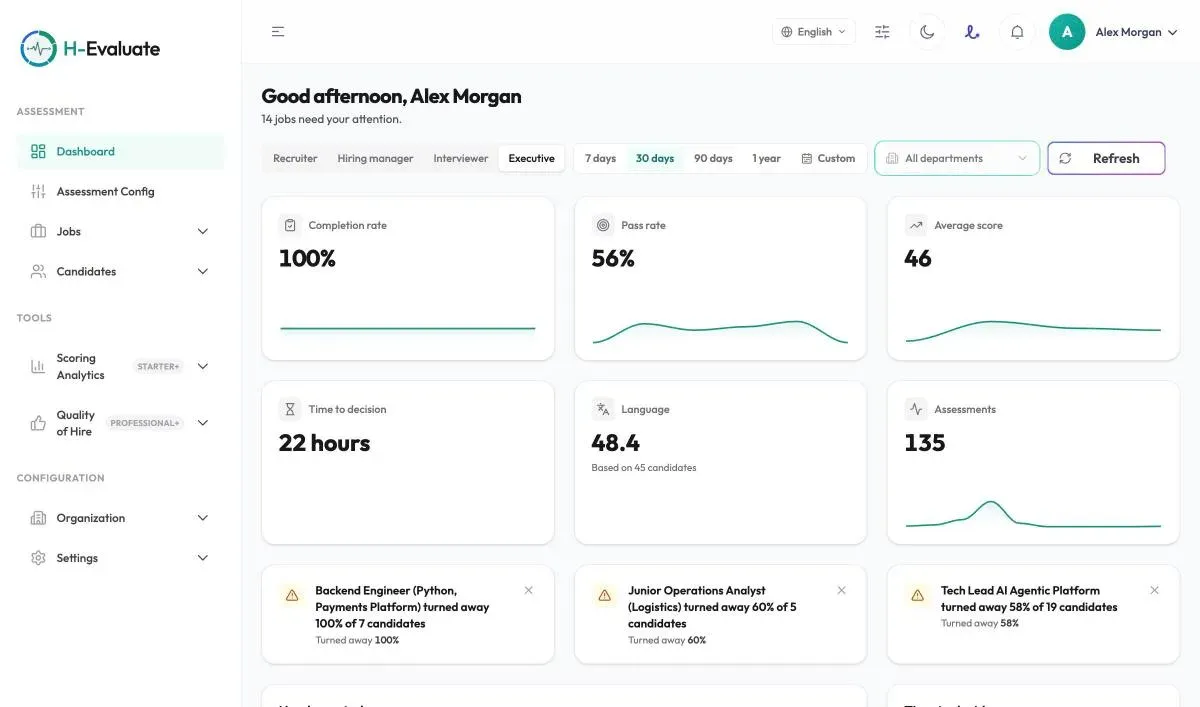
Section titled “Other reports”- Dashboard gives an overview of assessment activity across your organization.
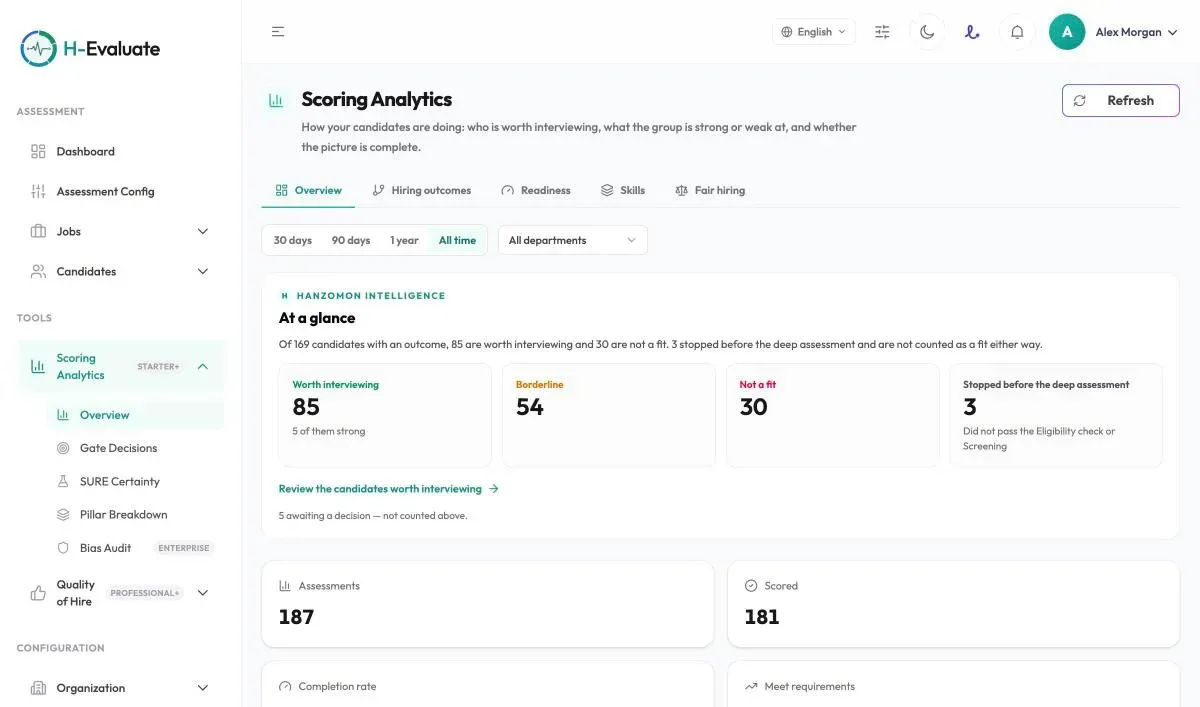
- Scoring Analytics shows scoring insights such as gate decisions and the pillar breakdown. Bias Audit is part of the Enterprise plan.
- Quality of Hire tracks how hires perform after they start. It is part of the Professional and Enterprise plans.
Reports that are not on your plan are greyed out in the sidebar.
- Next: Billing and credits
- Related: Compare candidates, Invite candidates
- Need help? Email [email protected].